CONSIDEREDTHE CONSIDERED EDIT

Smart office device / The considered edit

What if your desk had a cockpit?

Logitech / MX Creative Console

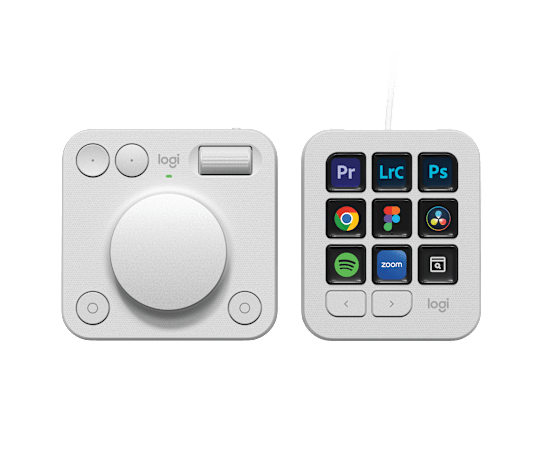
A tactile dialpad and customizable display keypad for the work you repeat. Discover how MX Creative Console can fit into an editing desk, a design workflow or a more intentional workspace.

Logitech MX Creative Console
Key displayLCD display keys
↗

Choose your moment ↓

SystemCustomizable keypad plus wireless dialpad
Key displayLCD display keys
ControlsDial, roller and customizable buttons

In real life

Three ways it becomes part of your day.

Official imagery · suggested use scenarios
01 / 03

Photo selection and adjustment

Give an editing session a physical rhythm

Open a familiar set of photographs and choose a few supported actions you use repeatedly. Put them on the display keys, then explore how the dial feels for a compatible adjustment. Begin with one stage of your process, such as reviewing or refining, rather than rebuilding the whole workspace at once.

Practical benefit

The value is making recurring actions easier to locate and feel, while keeping your attention on the image you are shaping.
Explore next ↓
Official imagery · suggested use scenarios
02 / 03

Video and design work

Keep common tools close during a project

A creative project often alternates between navigation, selection and adjustment. With a supported application profile, the keypad and dialpad can give these actions a physical home. Keep related commands together and practise on a copy of a project, so the arrangement grows around work you genuinely repeat.

Practical benefit

A well-chosen layout can reduce the feeling of searching through controls and make your working environment more personally organised.

Explore next ↓
Official imagery · suggested use scenarios
03 / 03

Creative work and everyday applications

A desk that follows your different roles

Your desk may serve editing in the morning, calls in the afternoon and music while you organise files. Logitech lists both creative and everyday applications. Explore the relevant profiles, but keep a small, memorable set for each so the console remains approachable when the workday changes direction.

Practical benefit

Separate app layouts can help the same physical controls stay useful across several activities without demanding one crowded universal configuration.

Explore next ↓

The details

What makes it worth a closer look

01

Controls you can feel

The dialpad combines a low-friction aluminium dial, roller and configurable buttons. It gives compatible actions a physical control surface. Whether that feels better than your current keyboard-and-mouse routine depends on your applications and the way you prefer to work.

02

Your actions, made visible

The keypad uses LCD display keys for shortcuts and tools. Recommended profiles provide a starting point, while customization lets you build around recurring actions. Begin with a small set you already understand; a useful workspace does not need every available key filled immediately.

03

A workflow that can evolve

Logi Options+ provides profiles, actions and a marketplace of plugins. Logitech lists support for applications including Photoshop, Premiere Pro, Lightroom, Figma and others. Confirm the plugin, operating system and application versions you need before deciding how the console will fit.

Product / property imagery from official sources.

Choose what matters to you

Choose what matters to you

Explore each detail before deciding.

Find your repeated movements

Think about the commands that interrupt your focus most often. Perhaps you keep reaching for the same adjustment, navigating an editing timeline or opening a familiar tool. Write down those actions before configuring anything. The console becomes easier to evaluate when you compare it against a specific task, rather than assuming more hardware will automatically make every kind of office work faster.

Explore the details

Design you can see. Benefits you can use.

Official imagery · suggested use scenarios
A closer look / 01

Product detail / 01

Display keys with a visible purpose

The keypad’s LCD keys show the actions you assign. Visible labels or icons can make a layout easier to learn than an entirely abstract collection of shortcuts, especially while you are establishing a new routine.

What this changes

Group actions by the stage of work they serve and give the most frequent commands clear positions.

Official imagery · suggested use scenarios
A closer look / 02

Product detail / 02

An aluminium dial for adjustment

The low-friction dial offers tactile control of compatible actions. Its appeal is the physical movement of turning a control while watching a result, giving your non-mouse hand a distinct role in the workspace.

What this changes

Try it on one adjustment you repeat often, then decide whether it adds comfort or useful control.

Official imagery · suggested use scenarios
A closer look / 03

Product detail / 03

A roller for navigation

The dialpad includes a roller as well as buttons. This gives you another physical input to map within supported workflows, so navigation and adjustment do not have to compete for the same movement every time.

What this changes

Separate the actions you use to move around a project from those you use to change it.

Official imagery · suggested use scenarios
A closer look / 04

Product detail / 04

Separate pieces, personal placement

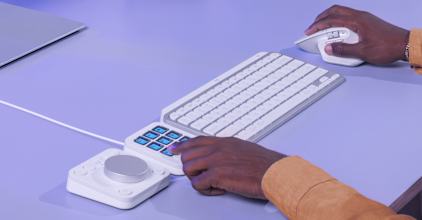
The keypad and wireless dialpad are individual pieces. You can consider where each fits around your keyboard, pointing device and natural hand position, rather than accepting a single fixed arrangement for the whole console.

What this changes

Place the controls where your hands already rest, then adjust their position after a normal working session.

Official imagery · suggested use scenarios
A closer look / 05

Product detail / 05

Profiles that develop with your workflow

Logi Options+ offers recommended profiles, custom actions and a marketplace. Up to fifteen keypad pages per application leave room to expand, but a small first page provides a clearer starting point than filling every possibility.

What this changes

Begin with one supported application and add another page only when a repeated task earns the space.

Official imagery · suggested use scenarios
A closer look / 06

Product detail / 06

Icons that mean something to you

Custom icons let you personalise assigned keys. A visual language based on your actual tools can make the console feel more coherent, particularly when you return to a project after time away from it.

What this changes

Use recognisable symbols and consistent placement rather than decorative images that make an action harder to identify.

A routine worth trying

Start here, then make it your own.

Official imagery · suggested use scenarios
  1. 01

    List repeated actions

    Note the commands you reach for during one ordinary project. Choose a short list that represents your own work, not every available feature.

  2. 02

    Install and choose a profile

    Use official Logi Options+ software and the appropriate app profile. Start with its recommended layout before deciding which parts need personal adjustment.

  3. 03

    Make one small layout

    Assign your priority commands, choose clear icons and place the devices comfortably. Keep existing keyboard shortcuts available while the new movements become familiar.

  4. 04

    Review after real work

    After a normal session, remove actions you did not use and reposition awkward ones. Let your actual work determine how the layout develops.

Care & preparation

Keep the experience working well.

01

Keep the desk usable

Route the keypad cable neatly and leave space for natural hand movement. Clean the surfaces according to Logitech’s guidance, without treating the display keys roughly.

02

Maintain your software setup

Use official updates for Logi Options+ and relevant plugins. If an application changes, revisit the profile so the assigned controls remain understandable.

03

Check the working environment

Available actions depend on application, plugin and operating system. Work computers may restrict installation, and no fixed productivity gain or permanent subscription promotion is promised.

Choose around your needs

Match the details to your priorities.

Your priority
What to look for
Keep in mind
Your priority

Frequent adjustments in supported creative apps

What to look for

Explore the dial, roller and app-specific profiles.

Keep in mind

Test the actions you repeat most often.

Your priority

Mostly typing and occasional meetings

What to look for

A strong keyboard-and-mouse setup may be sufficient.

Keep in mind

Identify recurring commands before adding another device.

Your priority

A personally organised creative desk

What to look for

Compare independent placement and visible display keys.

Keep in mind

Allow time for configuration and learning.

Find your fit

Does it fit your everyday?

Select the points that sound like you. Your choices stay on this page.

Selected priorities: 0 / 3

At a glance

MX Creative Console

Logitech

View buying options ↗
System
Customizable keypad plus wireless dialpad
Key display
LCD display keys
Controls
Dial, roller and customizable buttons
Profiles
Up to 15 keypad pages per application
Software
Logi Options+
Finishes
Pale Grey and Graphite

Before you decide

Before you decide

  1. Check exact software and operating-system compatibility
  2. Setup and learning time are part of the purchase
  3. A console complements an existing computer setup

FAQ

Good questions

Is this only for Adobe software?

No. Logitech lists several supported creative and everyday applications. Available actions depend on the app and plugin, so inspect the current compatibility list for the software you actually use.

Will it automatically make me faster?

No fixed time saving is promised here. The benefit depends on setup, familiarity and how often you repeat the mapped actions. Start with one workflow and compare it with your current method.

Is there configuration software?

Yes. Use Logitech's official Logi Options+ download and marketplace. Check operating-system support and whether your work computer allows software installation.

Is a creative software subscription included?

Some listings show promotional bundles. These can change and have eligibility rules. This page does not include a subscription offer; verify any current offer on Logitech's checkout page.

Should every key have an action immediately?

No. A few useful controls are easier to remember. Leave space and expand the layout when you discover another task worth making accessible.

Can one layout serve every application?

You can build around familiar patterns, but app-specific profiles are usually clearer. The supported actions and integration vary with the application.

How should I judge whether it helps?

Compare comfort and ease of finding actions during a real repeated task. A personally useful setup matters more than an assumed universal time saving.

Logitech / Smart office device

Make your next choice a considered one.

Check current price, local availability, delivery and terms on the official website.

Continue on the official website
Sources & product information

Privacy

This static guide does not send analytics or collect personal information. Interaction events are held in this tab only. External websites have their own privacy policies.